No. The PerfWatson log-files are essentially a combination of a minidump (capturing the stack on the UI thread at the time of the delay) and a text file indicating the length of the delay. I think PerfWatson also captures the time of various events during startup, but I don't know if that feature is in the final version.
- Paul
Yes, indeed! I've just uploaded a version for VS 2012 here: http://visualstudiogallery.msdn.microsoft.com/ad0897b3-7537-4c92-a38c-104b0e005206
Thanks for the love :)
- Paul
I’m thinking this was on startup of Visual Studio (i.e. before I did anything else with VS).
[Split over several posts due to forum limits]
Exception Type: System.NullReferenceException
Exception Message: Object reference not set to an instance of an object.
Exception Stack Trace: at System.IO.Packaging.Package.AddIfNoPrefixCollisionDetected(ValidatedPartUri partUri, PackagePart part)
at System.IO.Packaging.Package.GetPartHelper(Uri partUri)
at System.IO.Packaging.Package.GetPart(Uri partUri)
at System.Windows.Application.GetResourceOrContentPart(Uri uri)
at System.Windows.Application.LoadComponent(Object component, Uri resourceLocator)
at Microsoft.VisualStudio.Labs.ResponseTimeDisplay.InitializeComponent()
at Microsoft.VisualStudio.Labs.ResponseTimeDisplay..ctor()
at Microsoft.VisualStudio.Labs.PerfWatsonMonitorPackage.InjectMonitorControlInGrid(Grid grid)
at Microsoft.VisualStudio.Labs.PerfWatsonMonitorPackage.<>c__DisplayClass2.<TryInjectMonitorControl>b__1()
at System.Windows.Threading.ExceptionWrapper.InternalRealCall(Delegate callback, Object args, Int32 numArgs)
at MS.Internal.Threading.ExceptionFilterHelper.TryCatchWhen(Object source, Delegate method, Object args, Int32 numArgs, Delegate catchHandler)
at System.Windows.Threading.DispatcherOperation.InvokeImpl()
at System.Windows.Threading.DispatcherOperation.InvokeInSecurityContext(Object state)
at System.Threading.ExecutionContext.runTryCode(Object userData)
at System.Runtime.CompilerServices.RuntimeHelpers.ExecuteCodeWithGuaranteedCleanup(TryCode code, CleanupCode backoutCode, Object userData)
at System.Threading.ExecutionContext.RunInternal(ExecutionContext executionContext, ContextCallback callback, Object state)
at System.Threading.ExecutionContext.Run(ExecutionContext executionContext, ContextCallback callback, Object state, Boolean ignoreSyncCtx)
[Continued]
Duplicate Selection
State = Enabled
Version = 1.1
VSCommands 2010
State = Enabled
Version = 3.7.3.13
Solution Load Manager
State = Enabled
Version = 0.2.2
Reference Assistant
State = Enabled
Version = 1.1.11345.1020
VS10x Code Map v2
State = Enabled
Version = 2.43
VS10x Method Block Highlighter
State = Enabled
Version = 1.15
Image Insertion
State = Enabled
Version = 1.5
JScript Brace Matching Extension
State = Enabled
Version = 1.1
JScript Editor Extensions
State = Enabled
Version = 1.1.2
JScript IntelliSense Para Extension
State = Enabled
Version = 1.1.1
JScript Outlining Extension
State = Enabled
Version = 1.1.1
JScript Word Highlighter Extension
State = Enabled
Version = 1.1
PowerCommands for Visual Studio 2010
State = Enabled
Version = 1.0.2.3
Productivity Power Tools
State = Enabled
Version = 10.0.20626.18
Regex Editor
State = Enabled
Version = 1.5
Visual Studio PerfWatson
State = Enabled
Version = 1.1
Microsoft All-In-One Code Framework Sample Browser
State = Enabled
Version = 4.85
Code Contracts Editor Extensions
State = Enabled
Version = 1.4.40314.1
PerfWatson Monitor
State = Enabled
Version = 1.2
Spell Checker
State = Enabled
Version = 2.23
DPack
State = Enabled
Version = 3.0.15
-------------------------
Environment Data
VisualStudio.Version = 10.0
VisualStudio.Edition = Premium
VisualStudio.FullName = C:\Program Files\Microsoft Visual Studio 10.0\Common7\IDE\devenv.exe
VisualStudio.RegistryRoot = Software\Microsoft\VisualStudio\10.0
VisualStudio.LocaleId = 1033
VisualStudio.DisplayMode = vsDisplayMDITabs
Time.UTC = 12/25/2011 10:52:39 PM
Time.Local = 12/25/2011 4:52:39 PM
OS.Architecture = x86
Environment.Version = 4.0.30319.239
Environment.HasShutdownStarted = False
Environment.OSVersion.Platform = Win32NT
Environment.OSVersion = 6.1.7601.65536
to know who the offending party is? I've noticed recently that something is causing VS to lock up for a few seconds (probably an extension) intermittently. If it was possible to hover over the monitor and see some information about what was happening when the monitor pegged...
[Split over several replies due to forum limits]
Will Sullivan and Oliwa ask if there is any way to know who the offending party is. That is, can PerfWatson Monitor report what component in Visual Studio is responsible for the delays? Unfortunately, this is a very difficult question, and not one that can be answered reliably and accurately.
First of all, when a delay is detected, all that PerfWatson has for analysis is the call-stack on the UI thread. Usually at the top of the callstack will be a call into the operating system kernel to, for example, read a file or wait for some other thread to set an event. With a little bit of work, PerfWatson Monitor could look up the symbols of this stack frame via the Microsoft public symbol servers, and make a report that said “The UI thread is blocked reading a file” or “The UI thread is blocked waiting for an event from a background thread”. That’s not very interesting. Finding the name of the file in question, or a description of the event would be an improvement, but that’s highly specific to the specific delays and not generally applicable.
PerfWatson Monitor could also do more sophisticated analysis of the call-stack, resolving symbols again using the public symbol servers until it found a few stack frames in Visual Studio code. For example, if one of the stack frames said “msenv.dll!CToolbox::Populate”, PerfWatson Monitor might conclude that the delay occurred in the Toolbox component. However, very few stack frames are as obvious as this example. For example, the Toolbox is extensible – other components can contribute controls to the Toolbox - and sometimes the “blame” isn’t with the Toolbox itself, but with one of those components. It would be incorrect to blame the Toolbox entirely for a misbehaving 3rd party control.
[Continued.]
Taken to a ridiculous extreme, nearly every call-stack from the UI thread gathered by PerfWatson has a frame on it like “msenv.dll!EnvironmentMsgLoop” – the main message pump for Visual Studio. Does that mean that the message pump is responsible for all the delays? Clearly that couldn’t be the case.
Finally, some delays are caused by a sequence of actions, but the call-stack captures only the last one. The history is important, but PerfWatson doesn’t have access to that history.
The analysis we do at Microsoft with PerfWatson reports is based on aggregation of call-stacks. Each call-stack delay reported to us is put into a database where we match it with other, similar call-stacks. They don’t have to match perfectly, particularly in the top few frames where OS differences and the exact time when the call-stack is taken can introduce variability, but they do match very well at the “bottom” and the “middle”. The middle frames are the most interesting because they are not too general (EnvironmentMsgLoop) and not too specific (kernel32.dll!MmAccessBlah). These “Goldilocks” frames naturally rise to the top of our frequency analysis and we can begin to put them into buckets. There is quite a bit of human involvement here, and experts who know the components involved can define the buckets by splitting, folding and grouping queries into meaningful units. For component owners, this is sometimes eye-opening, and always rewarding to see how their component is performing “in the wild”. For more information about this, please see http://blogs.msdn.com/b/visualstudio/archive/2011/08/24/how-we-use-your-perfwatson-data-to-identify-unresponsive-areas.aspx
[Continued.]
Now, it might be possible one day, to “close the loop” and have PerfWatson Monitor contact the PerfWatson database via a public WebService and see if the just-captured call-stack matches any of the defined buckets to give a “best guess” at the cause for the offending component. The Visual Studio Responsiveness team has talked about doing that, but it hasn’t made it onto our backlog yet. We would need to sanitize the data for public consumption by removing all trace of internal bug IDs and email aliases and by ensuring that we had a sensible “offending component name” for each bucket.
Unfortunately, the Responsiveness team is currently busy with other tasks at the moment and none of this is likely to happen any time soon, if at all. Sorry.
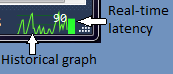
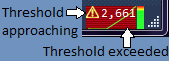
Version 1.1 is now released. It displays a yellow warning triangle when the 2 second threshold is approaching and turns the graph background red when the 2 second threshold has been exceeded.
Hi Paul,
thanks for this extension. I've installed the PerfWatson extension 2 weeks ago and tried the PerfWatson Monitor extension today but I can't see the graph in the statusbar. At the point on your picture Resharper displays some data in my VS2010. Do both extensions work side by side?
I'm using Win7 x64 Ultimate Sp1 (German), VS2010 Sp1 (English).
best regards
André
Hi, Andre. I'm sorry PerfWatson Monitor isn't working for you. I don't have Resharper installed, so I haven't tested the two together. There's no policy for adding controls to the status bar, so my code uses a conservative algorithm to add itself. That algorithm will give up if something isn't quite right. In this case, I expect that, by the time PerfWatson Monitor tries to add the graph control, Resharper has already modified the status bar and PerfWatson Monitor cannot find the right place. Let me see what I can do.