Follow us on Facebook!Productivity Power ToolsJuly 2011This update fixes a number of crashes reported with the Find extension. It also fixes an issue where the locations of floating document windows wasn't persisted correctly. You can find a set of known issues at the bottom of this page.
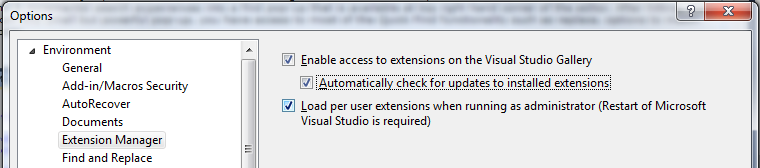
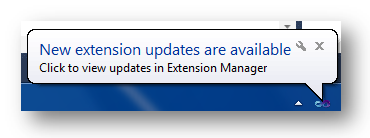
Avoid Extension Resets! Since the February 2011 release of the Productivity Power Tools, your extension state (disabled or enabled) will be retained when you install a new version of the Toolsas long as Visual Studio is running during the installation. You can tell Visual Studio to automatically check for updates to installed extensions (Tools | Options | Environment | Extension Manager), as seen here: When updates to any extension (not just the Productivity Power Tools) are posted to the Visual Studio Gallery you will see a toast notification in the Windows tray letting you know that there are updates available. Clicking on the popup will take you directly to the Updates tab of the Extension Manager, where you can quickly install the latest release of your extensions. Please note, it may take a few moments for the Update list to populate in the Extension Manager. XP users: Please see known issues for problems updating the Productivity Power Tools
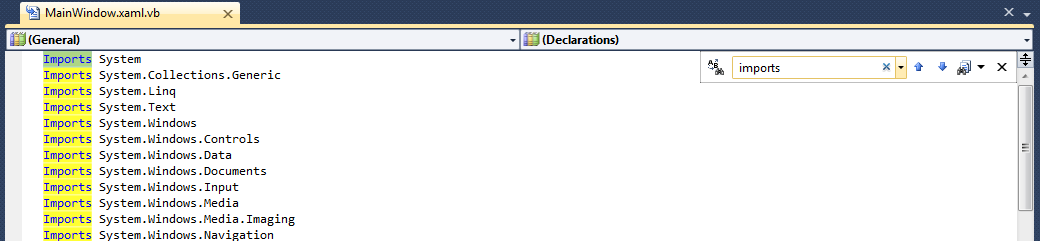
Quick Find (Updated) There are many different ways to find within Visual Studio (Incremental Search, Quick Find, Find in Files, Find Toolbar, etc) and it often isn’t clear which is the best for a given task or worse these options even exist. The find dialog itself also can obstruct code and jump around while users are searching. Our solution to these problems is the new Quick Find extension. In the screenshot below, you will see that we’ve turned the quick find & incremental search experiences into a find pop-up that is available at top right hand corner of the editor. After hitting, Ctrl+I or Ctrl+F, it simply highlights the find results as you type. From this small but powerful pop-up, you have access to most of the Quick Find functionality such as replace, options to match case and added support for matching .NET Regular Expressions!
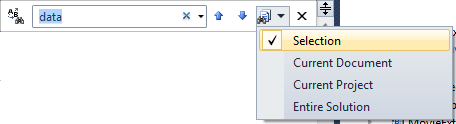
As a result your feedback, we've added the ability to set the scope of the Find to Selection, Document, Project, or Solution. Release notes: - As an extension, it was only possible to implement these changes for the code editor. You still must use Quick Find for searching in designers and other non-editor tabs.
- .NET Regular expressions are only available in the Find extension. Find in Files will continue to use VS Regular expressions
- Feel free to email us your feedback: VSFindFeedback@microsoft.com
|
Enhanced Scrollbar We’ve been looking into ways that we can improve the experience of navigating through code files. Our solution is the source map which has three modes that will allow you to more easily see the interesting artifacts in your files (edits, breakpoints, bookmarks, errors, warnings etc) and make it easy for you to navigate between them. The default mode is the “scroll bar only mode” which overlays icons onto the standard scrollbar to allow for viewing of these artifacts. In the source map mode, we’ve replaced the default scroll bar allow you to click on any item on the scrollbar to navigate directly to it. This source map mode also provides a preview of the part of the document as you hover. Finally, we have the detailed source map mode, which allows you to get a zoom out view of your entire file. You can switch between any of these modes by right-clicking on the scroll bar or going to Tools Options>Productivity Power Tools>Source Map where we have a host of other options that you can configure. |
Middle-Click Scrolling The ability to do middle click scrolling in Visual Studio 2010 has been a top request from our beta customers that we weren’t quite able to get into the release. With this extension you can press down on your scroll wheel and the move the mouse to quickly scroll through your document! |
Organize Imports for Visual Basic As part of the co-evolution strategy for Visual Basic and C#, we continue to bring the best features from each language experiences to the other. With Organize Imports for Visual Basic we’ve added yet another feature to that list. From the context menu, it allows you to sort the imports logically and remove the ones that aren’t being used. |
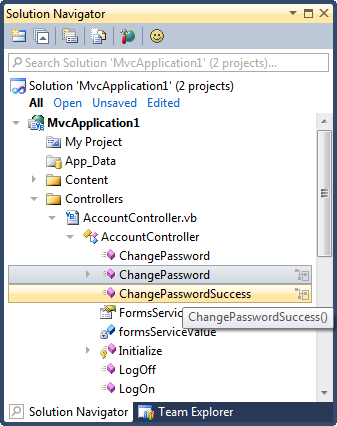
Solution Navigator Solution Navigator is a new tool window that acts like an enhanced Solution Explorer. With it, you can:
- Expand code files to navigate to its classes, expand classes to navigate to their members, and so on (C# and VB only)
- Search your solution, all the way down to class members
- Filter your solution or projects to see just opened files, unsaved files, and so on
- View related information about classes and members (such as references or callers/callees for C#)
- Preview images by hovering over them, or preview rich information by hovering over code items
- We've also added support for multiple selection and drag & drop.
In other words, it merges functionality from Solution Explorer, Class View, Object Browser, Call Hierarchy, Navigate To, and Find Symbol References all into one tool window!
Solution Navigator also provides interactive tooltips in C# and VB code (replacing the default “quick info” tooltips) that give you the same kind of data, but right at your fingertips. In addition to getting the tooltips on hover, you can: - Press Ctrl+1 to open a relevant tooltip at the current cursor location
- Press Ctrl+2 to quickly navigate to any class/member in the current source file
| |
Tab Well UI (More Info)This extension allows you to completely customize the behaviour of your document tabs from the Productivity Power Tools Options: - Floating Tab Wells
Now you can dock floating document windows on a separate monitor just like tool windows! There’s also an option now which allows you to open documents as floating by default. - Scrollable tabs
Maintain spatial consistency of the documents that are included in the document well. - Vertical tabs
Document tabs are shown vertically, allowing you to fit more tabs than are normally visible when shown horizontally. - Pinned tabs
Allows you to pin tabs to keep them always visible and available. - Show close button in tab well
Similar to Visual Studio 2008, will show a close button in the document well that will close the active tab. - Tab Behavior
- More Commands for Navigation
Using Ctrl+Alt+Page Down and Page Up to navigate between tabs (including pinned) in visual order.
Activate a specific pinned tab by Ctrl+Num Pad 1 through 0
Activate a specific regular tab by Ctrl+Alt+Num Pad 1 through 0
New commands for Moving windows between Tab groups (Window.MoveAllToNextTabGroup/Window.MoveAllToPreviousTabGroup) - Remove tabs by usage order (LRU)
When a new tab is inserted and existing tabs don't fit in the document well, instead of removing the tab at the end of the well it will remove the least recently used tab. This ensures that frequently used tabs are readily available. - Show pinned tabs in a separate row/column
Pinning tabs can quickly cause you to run out of space for regular tabs. The option allows you to always show pinned tabs in a separate row (or column, if displayed vertically) from regular tabs. - Sorting
- Sort tabs by project
Tabs will be sorted by the project they belong to, thus keeping them always together in the document tab well. - Sort tabs alphabetically
Tabs will be sorted alphabetically. When Sort By Project is turned on, tabs will be sorted first by project and then alphabetically. - Sort tab well dropdown alphabetically
The drop down menu at the right end of the document well is sorted alphabetically. This option allows ordering as the tabs are laid out in the document well.
- Tab UI
- Color tabs according to their project or according to regular expressions
This option permits tabs to be colored according to the project they belong to. This is particularly useful when sorting tabs by project, as it allows you to immediately identify different groups of project documents.
You can also configure regular expressions and assign a color to each one. If the name of a tab matches the configured regular expression, it will be colored with the assigned color.
- Miscellaneous options that modify tab UI
- Show document/toolwindow icon in tab
- Show close button in tab
- Modify dirty indicator style
This option allows you to select from a set of different dirty indicators that you might prefer over the asterisk. - Modify minimum and maximum tab size
Allows you to modify minimum and maximum tab size. Try setting minimum and maximum sizes to the same value, and you will have evenly spaced tabs. - Advanced Options
We previously had 14 options configured only through registry keys, you can now find them in the Advanced Options button in Tools Options->Productivity Power Tools -> Document Tab Well -> General
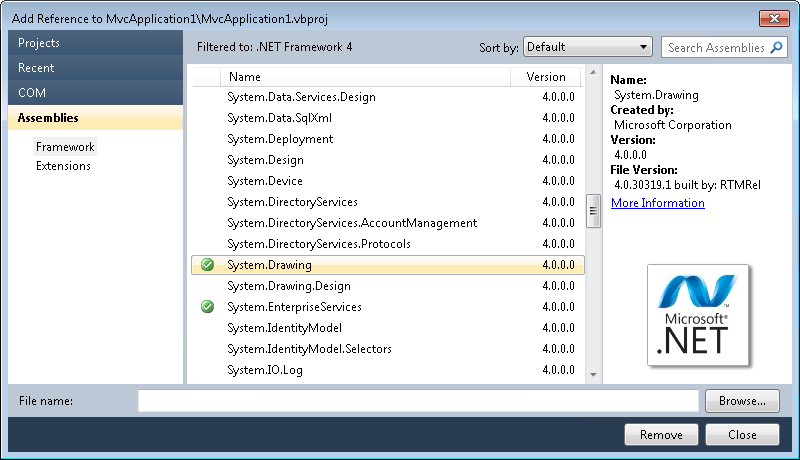
Searchable Add Reference Dialog (More Info)The new Add Reference dialog makes it faster and easier for you to find the reference that you are looking for and add it to your VB, C# or F# project. From the Solution Explorer, simply right click on the References node, select the Add Reference command to see the updated Add Reference Dialog.
Tools Options Support
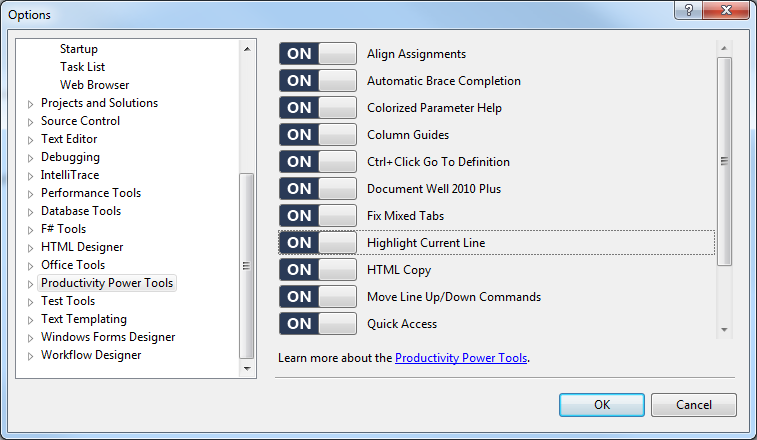
As much as we try, some experiences in the Productivity Power Tools are not for everyone. If you want to shut off an extension, go toTools | Options | Productivity Power Tools and find the extension on the right (remember to scroll!). By toggling the slider to Off and restarting Visual Studio, that extension will no longer be loaded and you will revert to the default Visual Studio behavior.
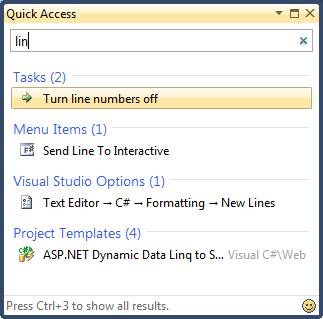
Quick Access (More Info)Quick Access is a new tool window that allows users to search for and execute common tasks within the Visual Studio IDE. Not sure where a particular menu command is located? Want a quick way to create a new Silverlight project? By using Quick Access, you can efficiently find and execute common VS operations without taking your hands off the keyboard. Quick Access allows users to: - Execute Main Menu and Context Menu commands
- Open the New Project Dialog with a specific Project Template selected
- Show a tool window
- Jump to a Visual Studio Options page
- Navigate to an open document in your Tab Well
- Create and execute a series of actions (task)
To use, press Ctrl+3 to launch Quick Access, type in your search term (e.g., “debug”), and press Enter on the desired result. If your search term returns too many results, continue pressing Ctrl+3 to cycle through each category of results.
Auto Brace Completion
Automatic Brace Completion improves the productivity of writing code by automatically inserting the closing code construct when the opening construct is typed for VB & C#. More specifically, this extension: - Supports the following constructs: (), {}, [], <>, “”, and ‘’.
- Allows you to press <TAB> to navigate past the next enclosing brace
- Allows you to automatically complete a statement in C# by inserting the closing semi-colon and moving you to the next line with SHIFT + ENTER
The extensions from the previous Producitivity Power Tools have been included and improved. See the revision notes at the end of this post:
Highlight Current Line
As the resolution of monitors increases, it’s becoming more difficult to find the caret in the code editor. The highlight current line extension makes it easy to find the caret by highlighting the line that the caret is on in the editor. You can even configure the default colour by changing the setting for “Current Line (Extension)” and “Current Line Inactive (Extension)” in Tools Options Fonts & Colors.
HTML Copy (More Info)This extension provides support for the HTML Clipboard format when cutting or copying code from the editor. This means that you’ll no longer have to go fix up the formatting of your code when you paste it into a TFS bug form or any other HTML based control. It is possible to modify the html format which gets copied to the clipboard and with the release you now have the ability to customize that to suite your needs. Simply go to Tools | Options | Productivity Power Tools | HTML Copy:
Triple Click
It’s never been easier to select a line of code from the mouse by simple triple-clicking anywhere on the line.
Fix Mixed Tabs
Some developers prefer tabs, others prefer spaces, and nobody likes mixing tabs & spaces. This extension promotes developer harmony by warning as they are open or save a file that has a mixture of tabs & spaces. The information bar also provides an easy way to fix the file to suit your preference.
Ctrl + Click Go To Definition
This extension gives the editor a web browser by adding clickable hyperlinks to symbols in your code as you hold down the Ctrl key.
Align AssignmentsThis extension is useful for making your code a little more readable by aligning the assignments when you type Ctrl+Alt+] such that it takes this: 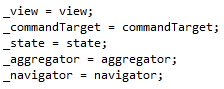 And turns it into this: And turns it into this: 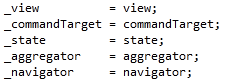 Note! This may conflict with your formatting settings. E.g. in C# you will need to disable: Tools->Options->Text Editor->C#->Formatting->Spacing->"Ignore spaces in declaration statements" Note! This may conflict with your formatting settings. E.g. in C# you will need to disable: Tools->Options->Text Editor->C#->Formatting->Spacing->"Ignore spaces in declaration statements"
Move Line Up/Down Commands
This extension maps the Alt+Up Arrow & Alt+Down Arrow keys such that they will move the current line of code or the selected lines up and down through the editor.
Column Guides
Since Visual Studio 2002, there has been a not so secret registry key which allowed user to draw a vertical line in the code editor. This is very useful to remind developers that their full line of code or comments may not fit one a single screen. Thanks to this extension this feature has returned with UI configure it. Simply place the cursor at the appropriate column and select Add Guideline from the context menu
Colorized Parameter Help
This extension improves consistency with the editor by applying syntax highlighting to the contents of the Parameter Help window for C# &VB.
Please note: Syntax highlighting colors can be customized using the display items prefixed with “Signature Help” in the “Fonts and Colors” menu.
Revision Notes - 10.0.20626.18
- Fixed crashing issue with the Find Extension
- Fixed issue where floating window document states are not correctly persisted.
- 10.0.20616.17
- Fixed crashing bugs in Extension Update Check and Enhanced Scrollbar
- Fixed issue blocking Middle Click Scrolling
- Fixed conflict with VsVIM and Align Assignments
- Changed Document Tab Well to persist window layouts to DocStates.suo file so that it will be hidden from Source Control
- 10.0.20427.10
- Fixed crashing bugs in Fix Mixed Tabs, Document Well
- Updated Quick Find to fix crashes and support search Scope (Selection, Document, Project, Solution)
- Updated Quick Find to support keyboard shortcuts
- 10.0.20318.14
- Fix Crashing bugs in Fix Mixed Tabs and Enhanced Scrollbar extensions
- 10.0.20214.15
- Add Reference
- Added support for Multi-targeting
- HTML Cut/Copy
- Added customization of copied markup
- 10.0.11019.3
- Solution Navigator
- Added Drag & Drop support
- Added Multiple Selection support
- Tab Well UI
- Added Floating Tab Wells
- Added Ctrl+Alt+Page Up/Page Down to navigate between tabs in visual order.
- Added UI in Tools Options for the Advanced Options previously under a registry key
- 10.0.10819.19
- Quick Access
- Fixed Crashing issues experienced by many customers.
- 10.0.10725.12
- Solution Navigator
- Projects are now sorted in Solution Folders
- Ctrl+1 & Ctrl+2 keybindings can now be configured via Tools Options Environment Keyboard
- Performance of search in large projects has been improved. Note: It no longer searches on a single character
- Quick Access
- Two crashing issues that affected particular machine configurations have been fixed.
- 10.0.10710.22
- Added Tools Options Support, Solution Navigator, Quick Access, Auto Brace Completion
- Searchable Add Reference
- Fixed: HintPaths were not added for non-Framework, browsed assembly references
- Fixed: Exception dialog is shown when an assembly with an invalid AssemblyCulture attribute is found.
- Fixed: Exception dialog is shown for some missing references or invalid type library references
- Fixed: Browsed references not being added to the Recent tab.
- Fixed: Trying to fix an unresolved reference reported that it is already present in the project. Now it updates the reference with the correct path.
- Fixed: Incomplete Assembly Name was being used to construct resolved reference identities
- Added: Context menu on the Recent tab to allow for clearing of the recent references list.
- Added: Browse now defaults to the solution folder. Subsequent uses of the dialog remember the previous folder.
- Colorized Parameter Help
- There are now specific Fonts & Colors settings to allow you to configure the display of items in Parameter Help. This will allow users with dark backgrounds to be able to customize these to readable.
- Column Guides
- Fixed: Adding & Removing guidelines from a split window occurred based on the caret position in the wrong window.
- Fixed: Guideline could not be added to first column
- Fixed: Guideline is placed incorrectly when added to a trailing tab
- Moved: Guidelines are now a fly-out to reduce the clutter on the Editor context menu.
- Ctrl Click Go To Definition
- Fixed: Navigation now happens on mouse up which reduces conflict with drag & drop operations and word selection.
- Document Tab Well settings
- Added: Show/Hide pin button in unpinned tabs
- Make selected tab more distinguishable when using custom colors
- Configure text color for selected and unselected tabs
- Command for closing all unpinned tabs
- Moved: Options for this extension are now found under Productivity Power Tools -> Document Tab Well(or by typing Document Tab Well into Quick Access).
- Fixed: Vertical tabs would float when a new toolbar row appeared as a result of selecting a tab.
- HTML Cut/Copy
- Added: Cut as HTML is now supported
- Installation on Windows XP
- Fixed: Unable to install Productivity Power Tools on Windows XP if user name is too long. Note: We've reduced the number of characters considerably but this still may be an issue if your user name is extremely long.
- 10.0.10608.1630
- Fixed issue where Visual Studio may crash on startup on computers where proxies required user entered credentials.
Known Issues - 10.0.20616.17
- Upgrade fails for WinXP + VS2010 SP1 users with Invalid Signature error. Signature is in fact valid. Workaround is to uninstall existing Power Tools and install fresh from the Extension Manager or VS Gallery.
- Middle Click Scroll is not turned on by default. Workaround is:
- Open C:\users\<username>\AppData\Local\Microsoft\VisualStudio\10.0\Extensions\Microsoft\Productivity Power Tools\10.0.20427.10\extension.vsixmanifest in the xml editor or notepad
- In the <Content> tag, add the following line: <MefComponent\<Microsoft.PowerTools.MiddleClickScroll.dll</MefComponent>
| |